Setting up Teams in Fluency
Last updated: April 19, 2026
If you prefer, you can watch the video walkthrough instead. If not, follow along below.
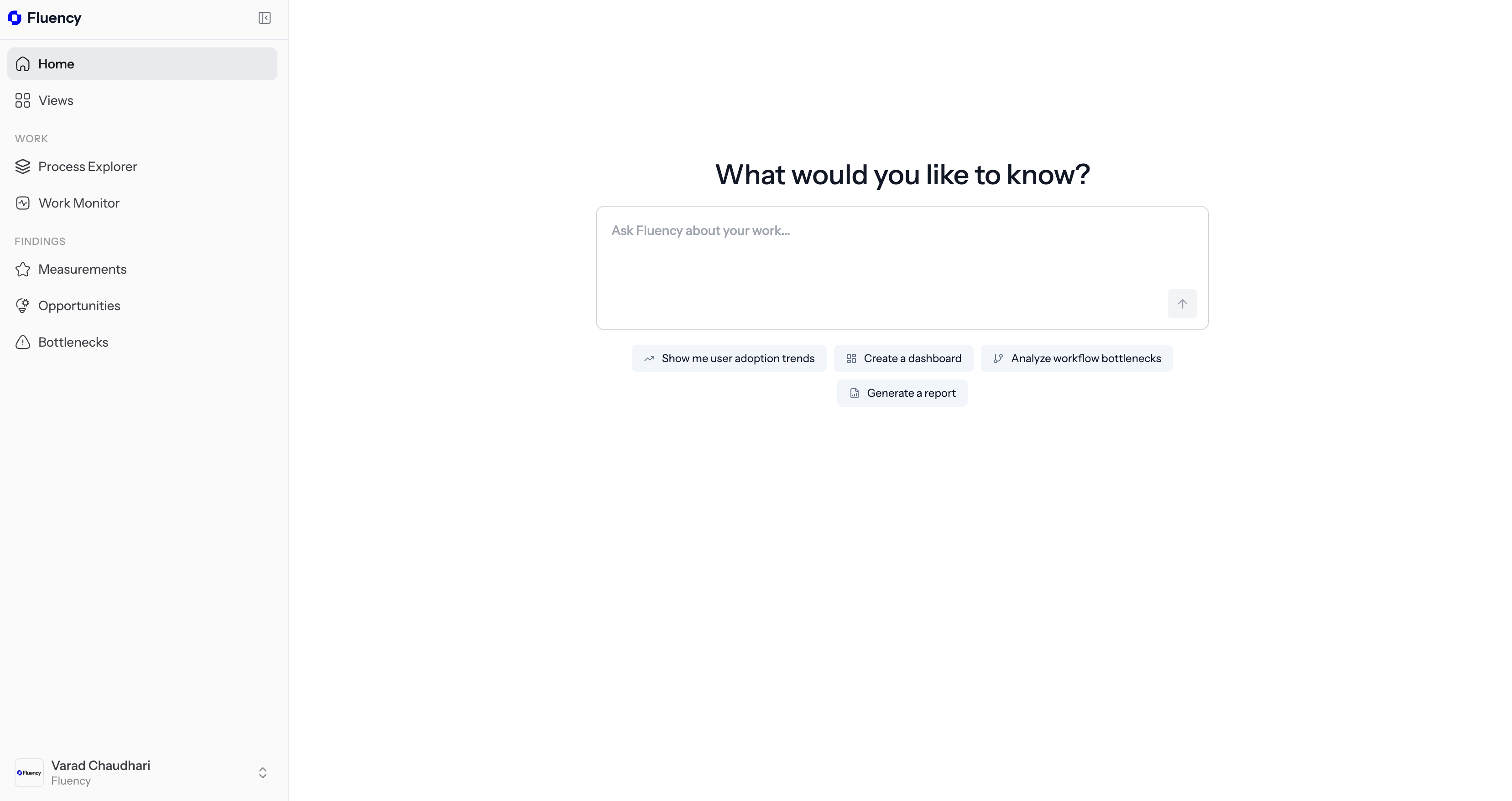
1. Open the Fluency Portal on the Web
Navigate to dashboard.usefluency.com to launch the Fluency portal to get started.
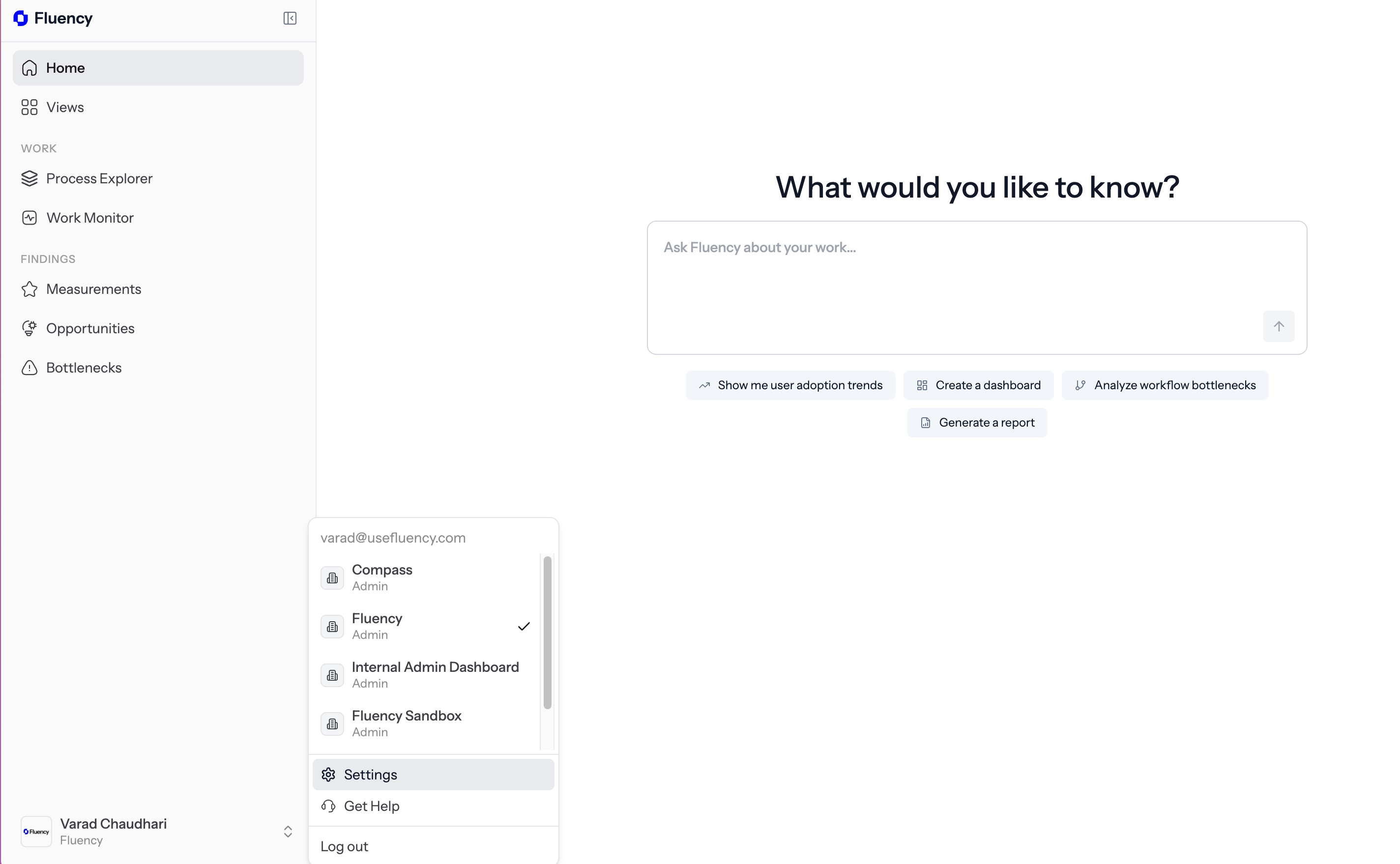
2. Navigate to Settings
Click on the bottom left sidebar to open options and then click on Settings.
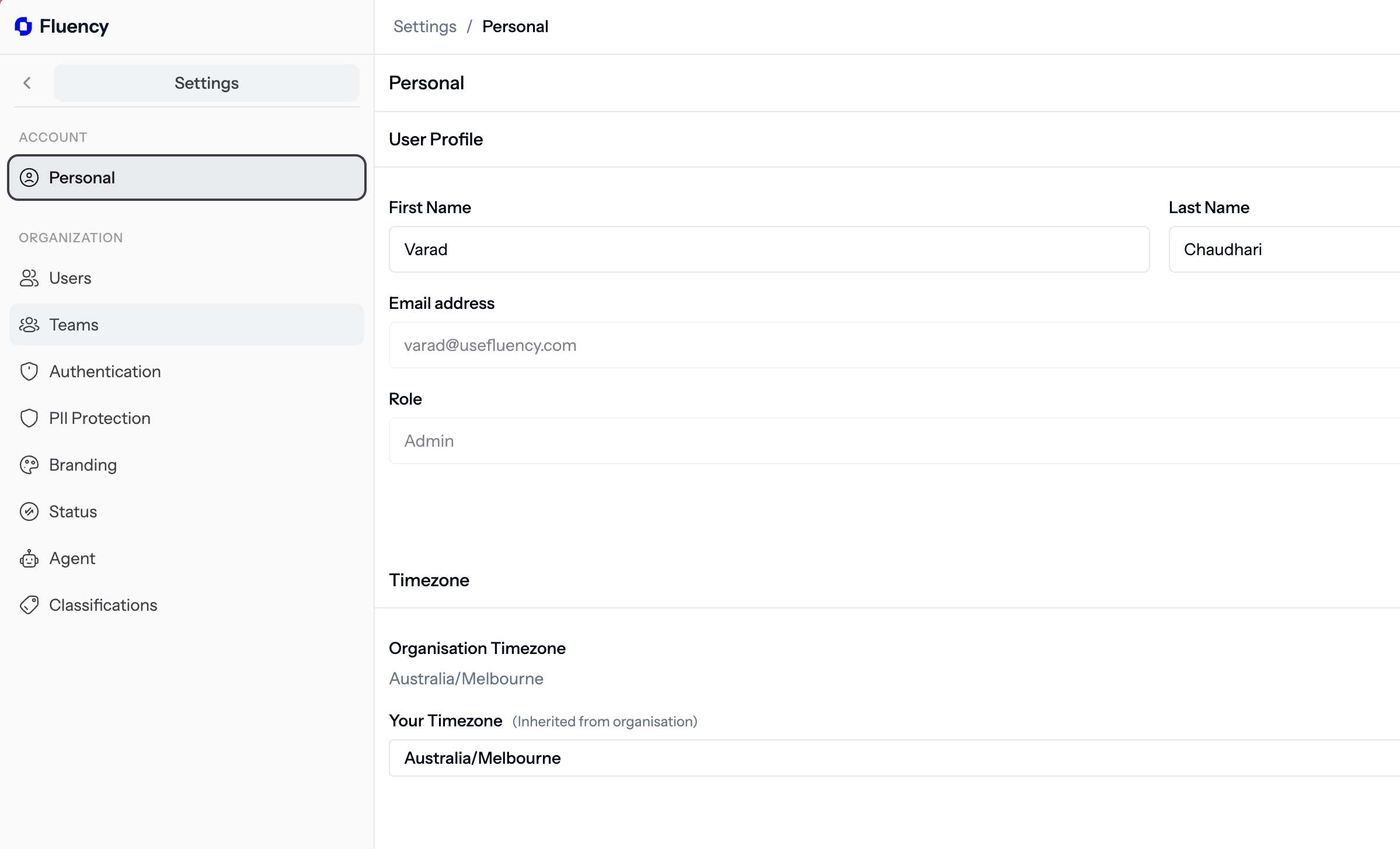
3. Navigate to the Teams Option
Click on Teams on the sidebar underneath the organization umbrella category.
4. Create the Relevant Team
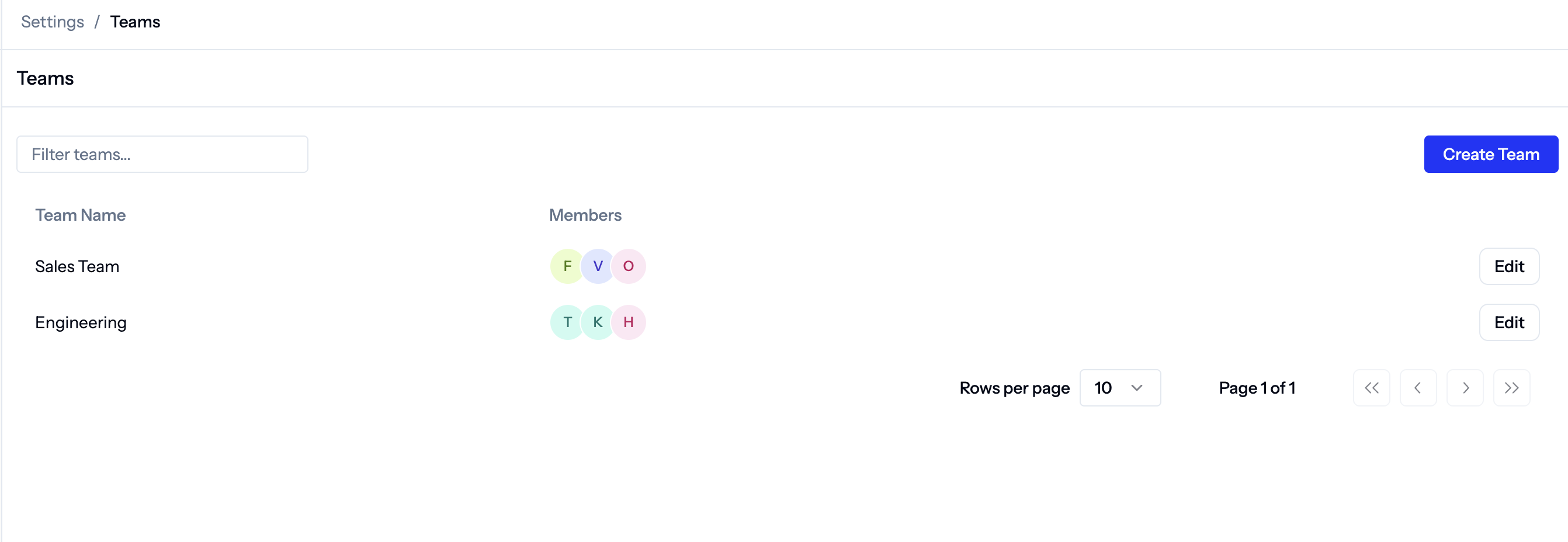
Click on "Create Team" in the top right of the screen to begin creating a team.
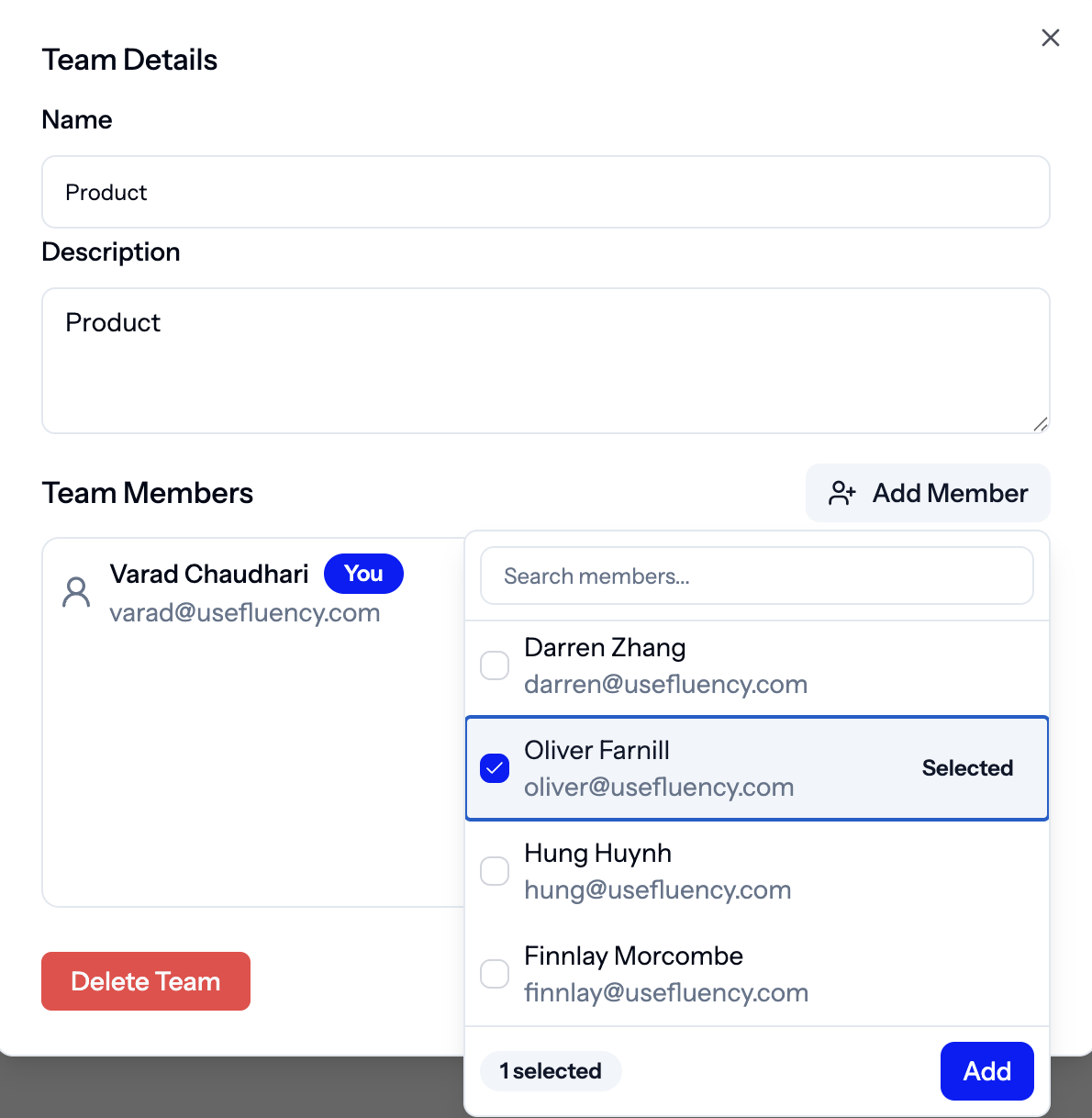
5. Describe your Team
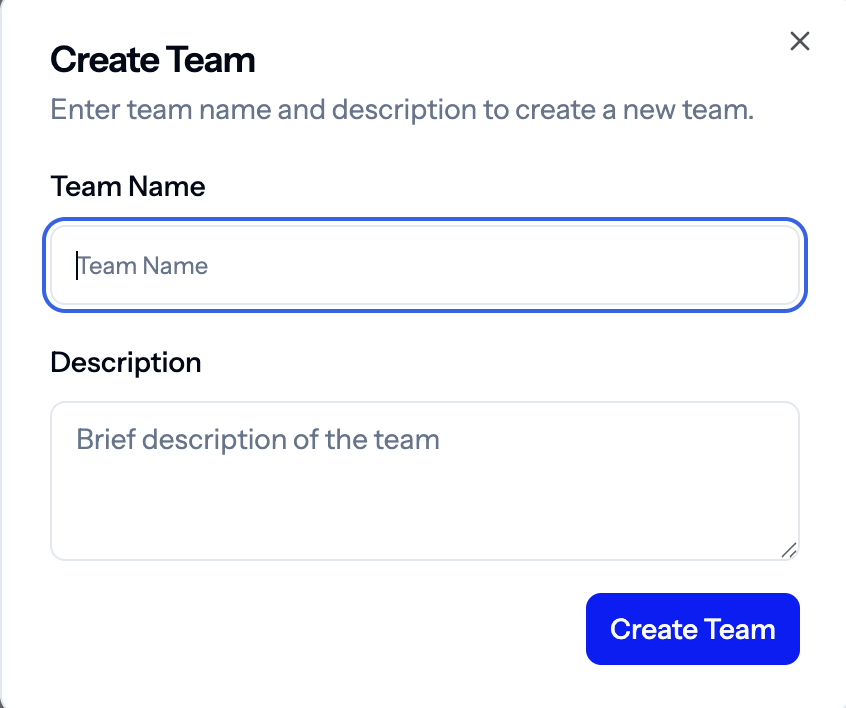
Create a name for the team or sub-function you want to allocate users towards and give a description.
6. Allocate Users to the Team
Select and add relevant team members you want to include in the specific team.