Configuring Fluency Agent Settings
Last updated: April 20, 2026
If you prefer, you can watch the video walkthrough instead. If not, follow along below.
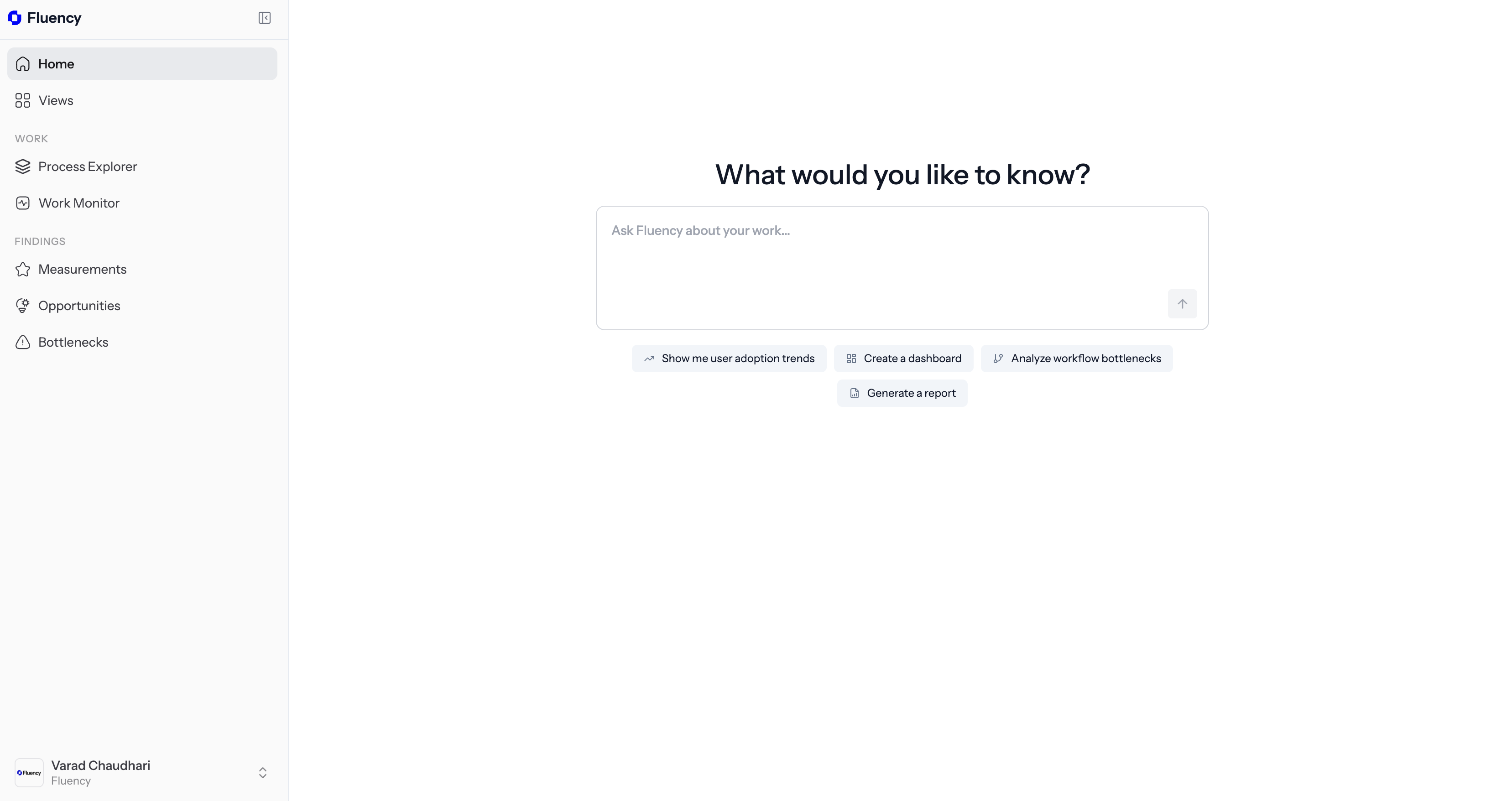
1. Open the Fluency Portal on the Web
Navigate to dashboard.usefluency.com to launch the Fluency portal to get started.
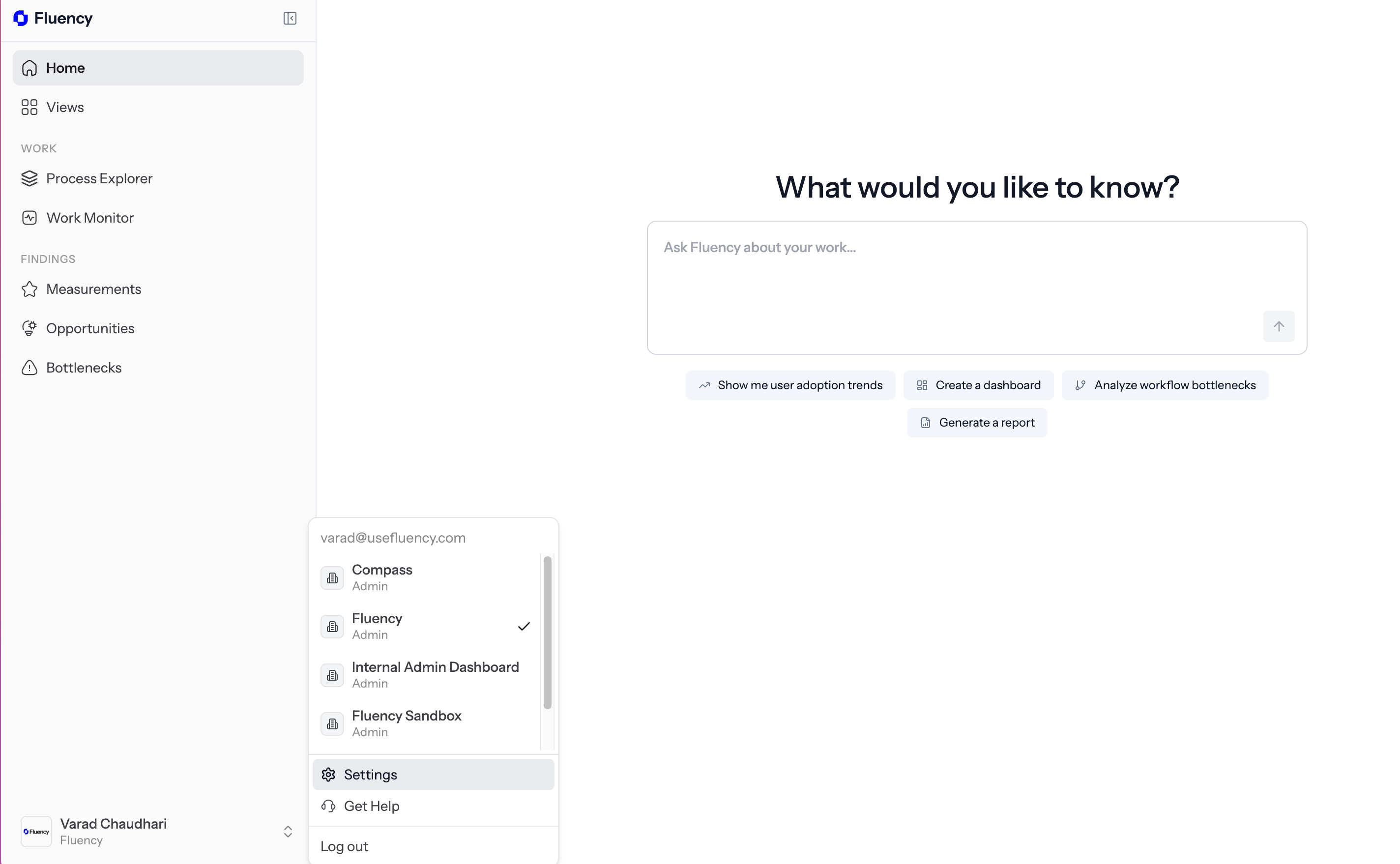
2. Navigate to Settings
Click on the bottom left sidebar to open options and then click on Settings.
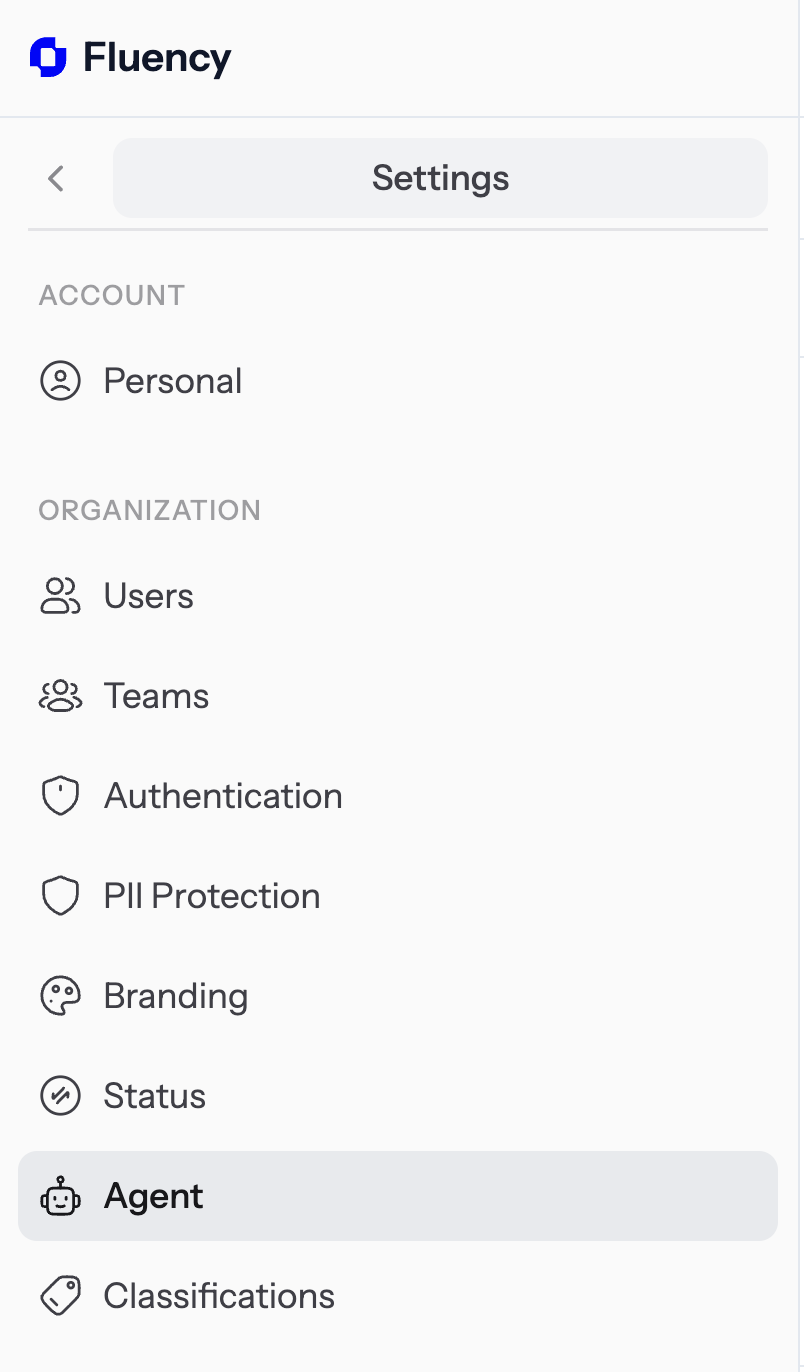
3. Navigate to the Agent Option
Click on Agent on the sidebar underneath the organization umbrella category.
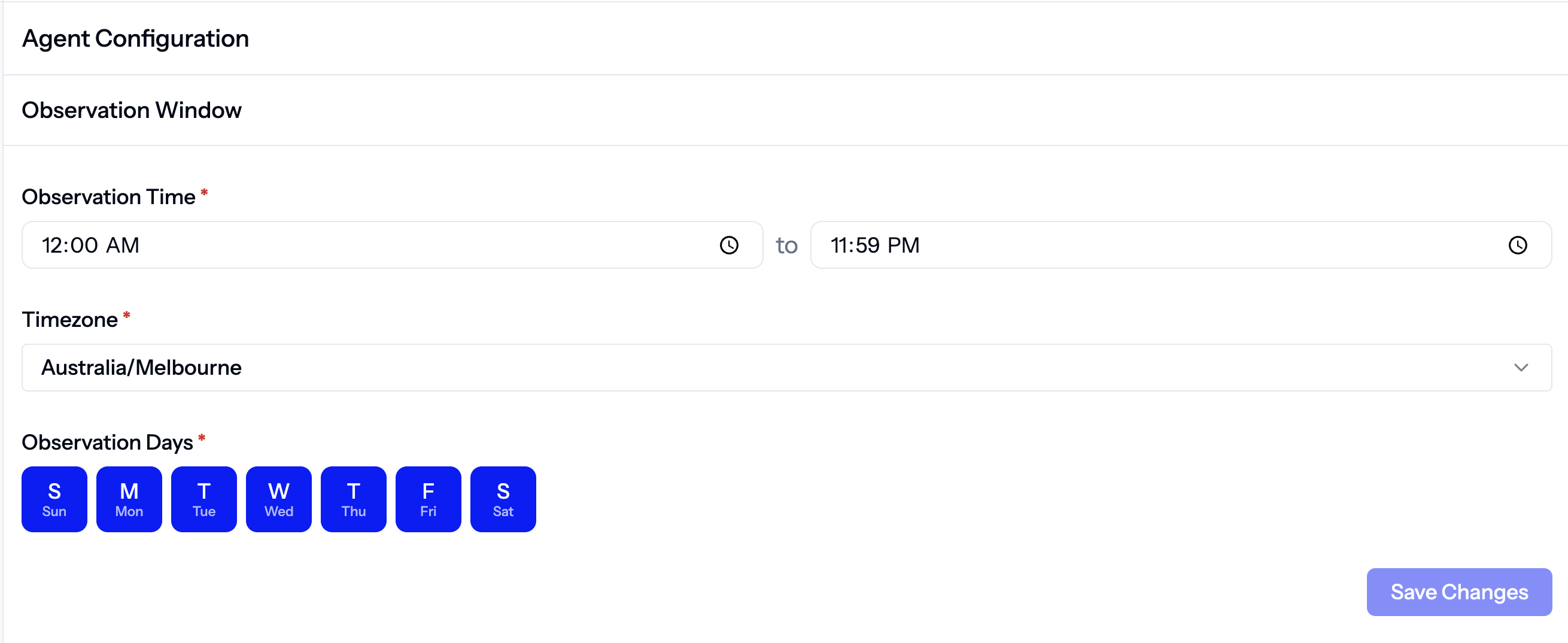
4. Configure the Necessary Observation Window for Fluency
Adjust variables like observation days and observation hours scoped to the relevant time zone. This is when you want Fluency to be operating.
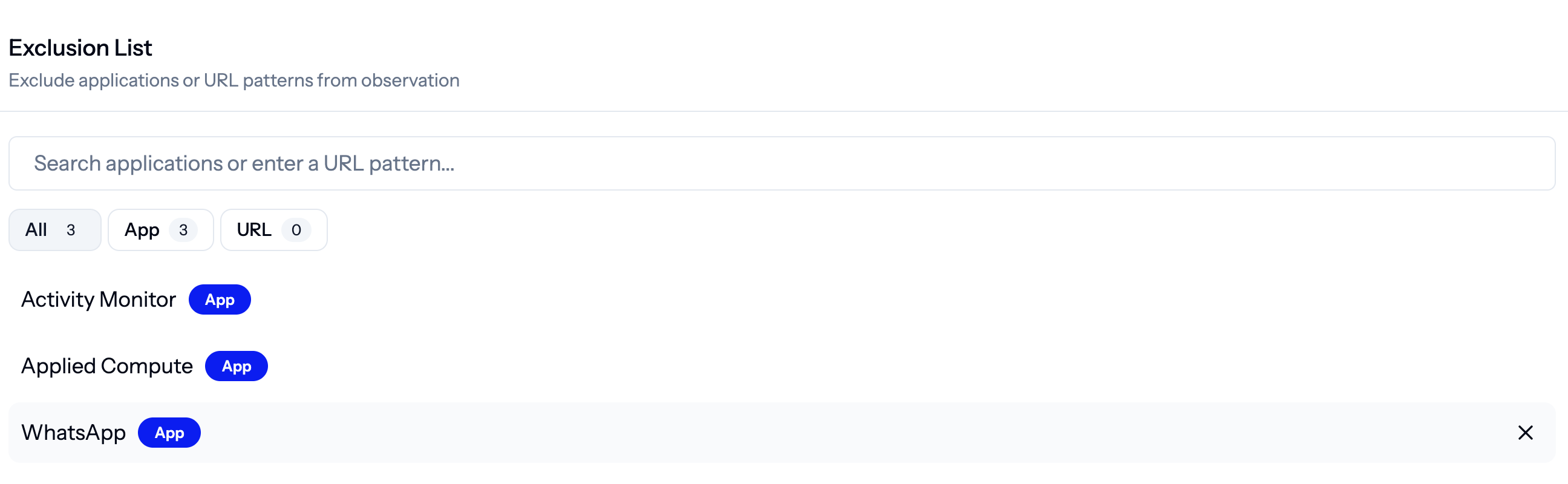
5. Add Exclusions to Fluency
Add any applications or URLs that you want Fluency to never be able to access.